Lets install Sublime Text now that third party installation has left with the removal of solus-sc.
Generally following these instructions should™ work for other third-party applications as well.
Get the latest version of Sublime Text from their downloads page.
Extract the archive and then open sublime_text.desktop. We want to see where Sublime Text would prefer to be installed.
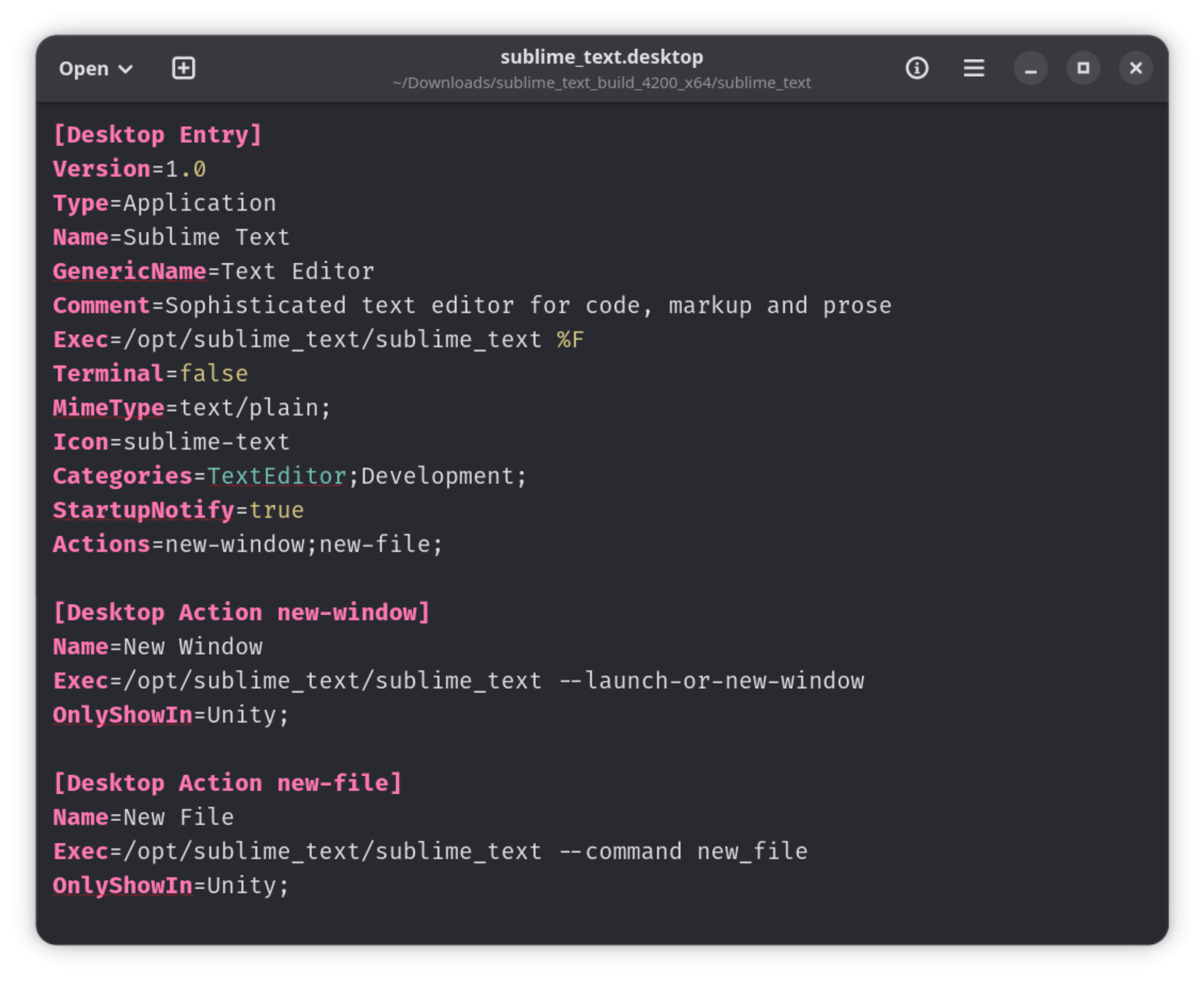
Looking at this line Exec=/opt/sublime_text/sublime_text %F we see that /opt is where the sublime_text folder should be moved.
*You should be able to replace /opt with any directory you would like to use as long as you reference the absolute path
Make the /opt directory.
cd /
sudo mkdir /opt
Move the sublime_text folder to /opt so the path should be /opt/sublime_text
Copy the sublime_text.desktop file to ~/.local/share/applications
Edit sublime_text.desktop and update the icon path to /opt/sublime_text/Icon/128x128/sublime-text.png. *Chose a different icon size if your icon looks funny after step 9.
Right click the sublime_text.desktop and go to properties and toggle the button to make it executable
Log out and login. You should have an application icon and working Sublime Text.
=========================================================================
Reserved for updates.
Added the step to make the .desktop file executable.